
How to List Folders
DriveView can list Google Drive folders on your site. Setting up is a simple process for public folders, and have some additional steps for private folders.
Important: as the user of the application, you are responsible to share only folders that have contents you really want to be shared with the audience of your site!
01
Google Drive Folder Link
The first thing to collect is a link of your Google Drive folder you want to display on your site.
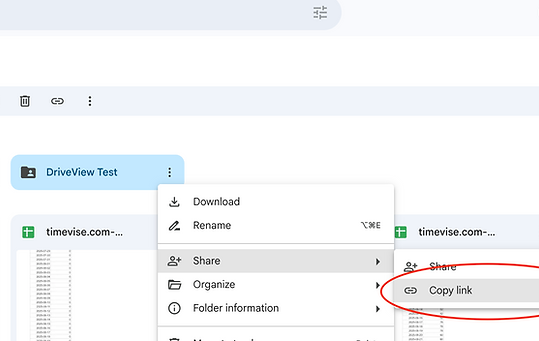
You can copy it from Google Drive:
-
Click the dots on the folder
-
Select "Share"
-
Click "Copy link"
With this the link of the folder is placed on the clipboard.
02
Adding the Widget to Your Site
On the page editor in Wix:
-
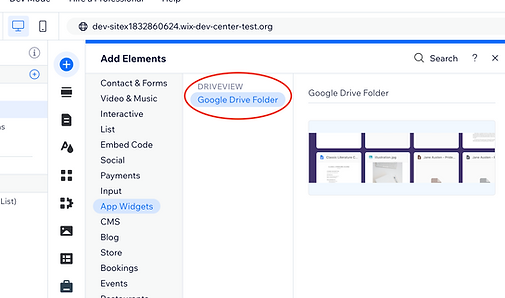
Click on the + button on the left sidebar
-
Select "App Widgets" then "Google Drive Folder"
With this the widget should be displayed, but the content at this point is just the instructions how to set a folder.
03
Setting Up the Widget
On the page the widget should be displayed, but the content at this point should be empty
-
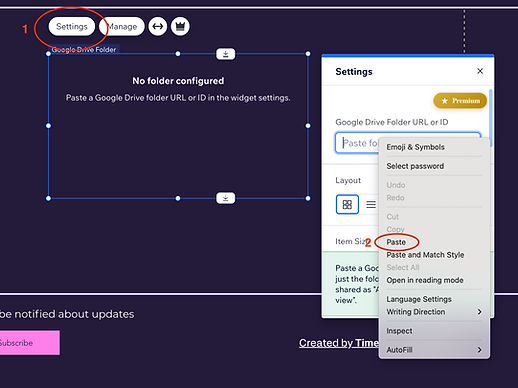
Click on the widget
-
Open the "Settings"
-
Paste the URL from the clipboard
After a couple of seconds the folder should be listed in the widget.
04
Customization
The default style of the widget should match the theme of the site.
-
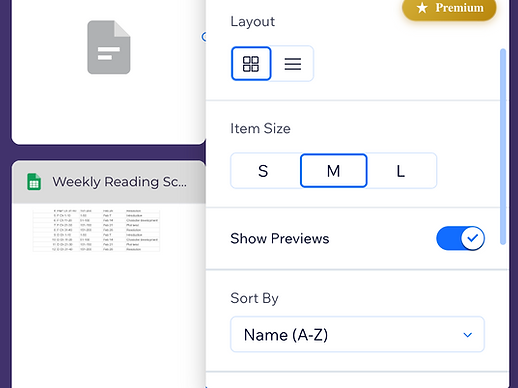
You can switch between grid and list view
-
You can set size for the elements
-
Whether to display previews
In premium version you have professional customization options.
Demo
Listing a public folder from Google drive.
Each entry on the list navigates to the file in Google Drive in a new browser tab, where the contents can be accessed.
Listing a private folder from Google drive.
Each entry on the list navigates to the file in Google Drive in a new browser tab. Users without access can request access to the document on demand.